All articles
·
3 min read
Visby MCP Is Live: Step-by-Step Setup Guide
Visby's new MCP server lets you check your AI visibility, prompt performance, and GEO tasks

Visby is one of the fastest-growing AEO GEO tools on the market, helping brands track and improve how they show up across ChatGPT, Claude, and Gemini. Over 2,500 users rely on Visby to monitor their AI visibility, understand which prompts trigger brand mentions, and act on tasks that improve both traditional SEO and generative engine optimization.
An MCP connector has been one of the most requested features from our users, and it is now live. MCP (Model Context Protocol) lets AI assistants connect directly to external tools and data sources, so instead of switching tabs to check your dashboard, you can pull your visibility data straight into the conversation you’re already having.
Visby’s MCP server can be connected from several platforms that support MCP. In this guide, we’ll walk through the setup using Claude as an example, so you can see exactly what the process looks like from start to finish.
How to Connect Visby’s MCP in Claude (Step-by-Step)
Step 1 - Open Connectors in Claude Settings
In Claude, go to Settings, then select Connectors from the menu on the left.

Step 2 – Add a Custom Connector
On the Connectors page, click the Add dropdown in the top right corner, then select Add custom connector.

Step 3 – Enter Visby’s MCP Server Details
A dialog will open asking for a name and a server URL. Enter a name such as “Visby” or “Visby MCP,” then paste the following into the Remote MCP server URL field: https://mcp.visby.ai/mcp
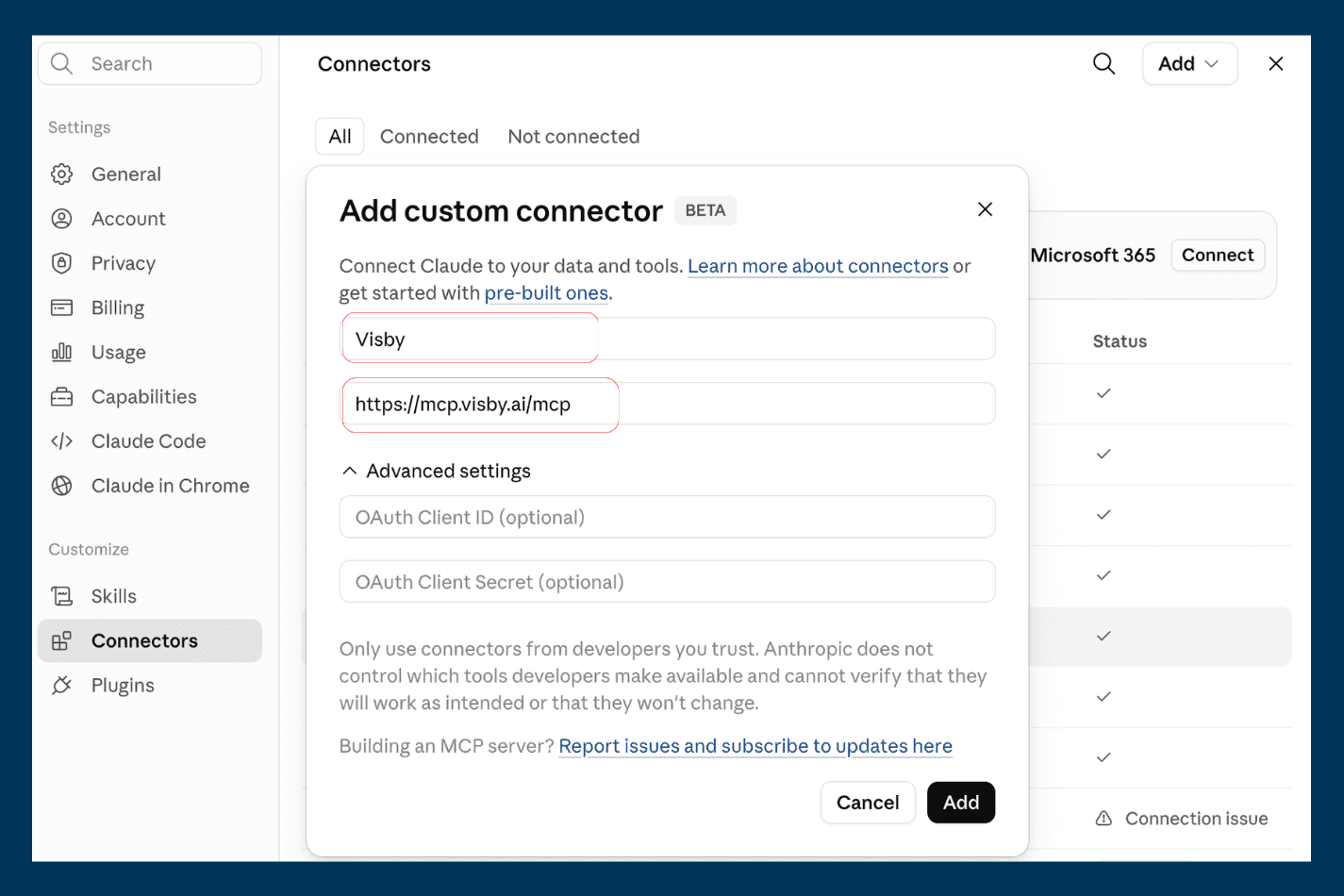
Step 4 – Log In to Visby and Approve Access
Before clicking Connect, make sure you’re logged in to the Visby account you want to link. Once you’re ready, click Connect. You’ll be redirected to a Visby authorization screen asking Claude to access your Visby account. Click Approve to grant access.
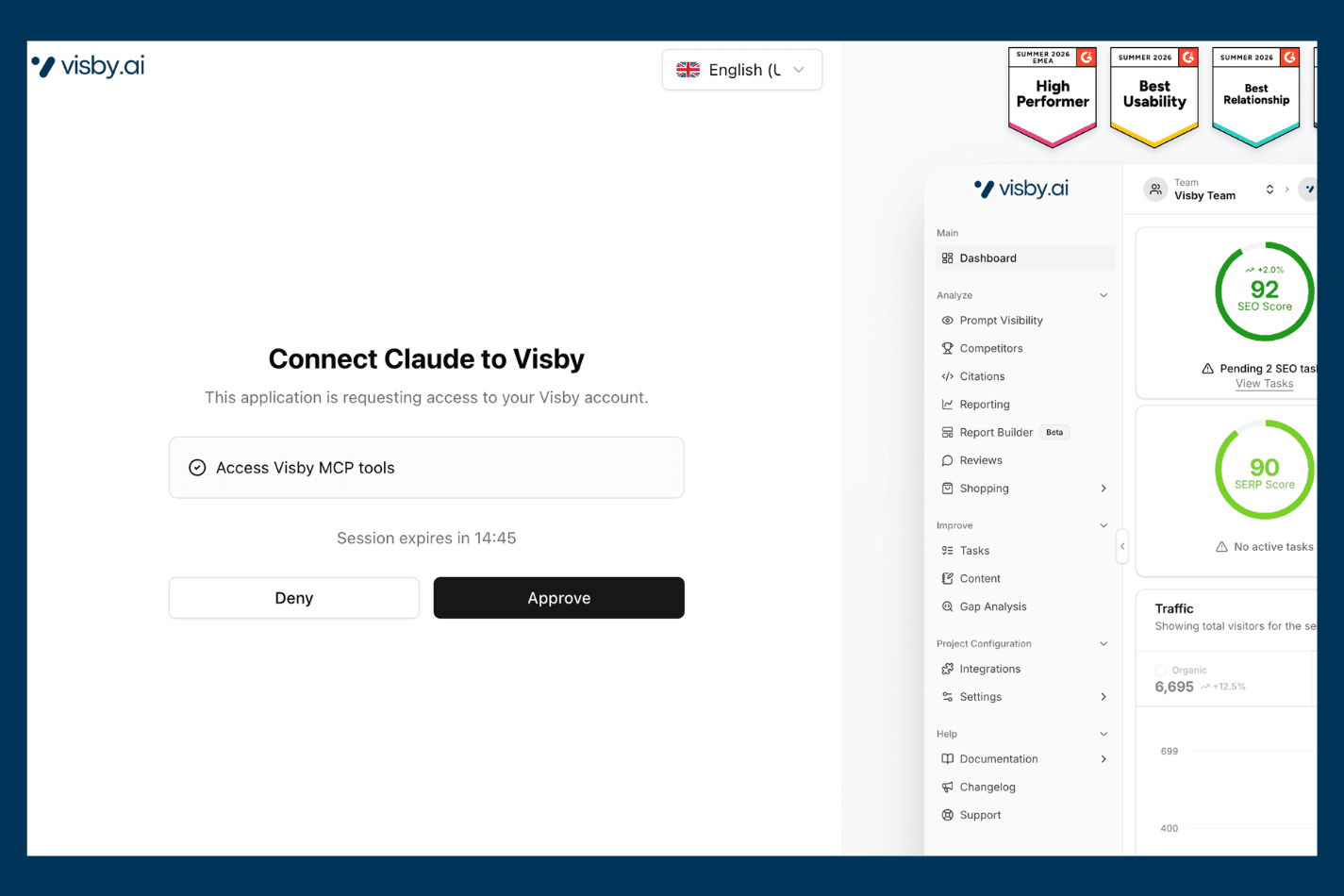
Step 5 – Confirm the Connection
Head back to the Connectors page in Claude. You should now see Visby listed with a Custom tag and a checkmark under Status, confirming the connection was successful.

Step 6 – Set Tool Permissions
Click into the Visby connector to review Tool permissions. Here you can choose when Claude is allowed to use each Visby tool, whether that’s always allowing it, asking each time, or denying it. The available tools are:
Get project
Get visibility summary
List projects
List prompts
List workspaces
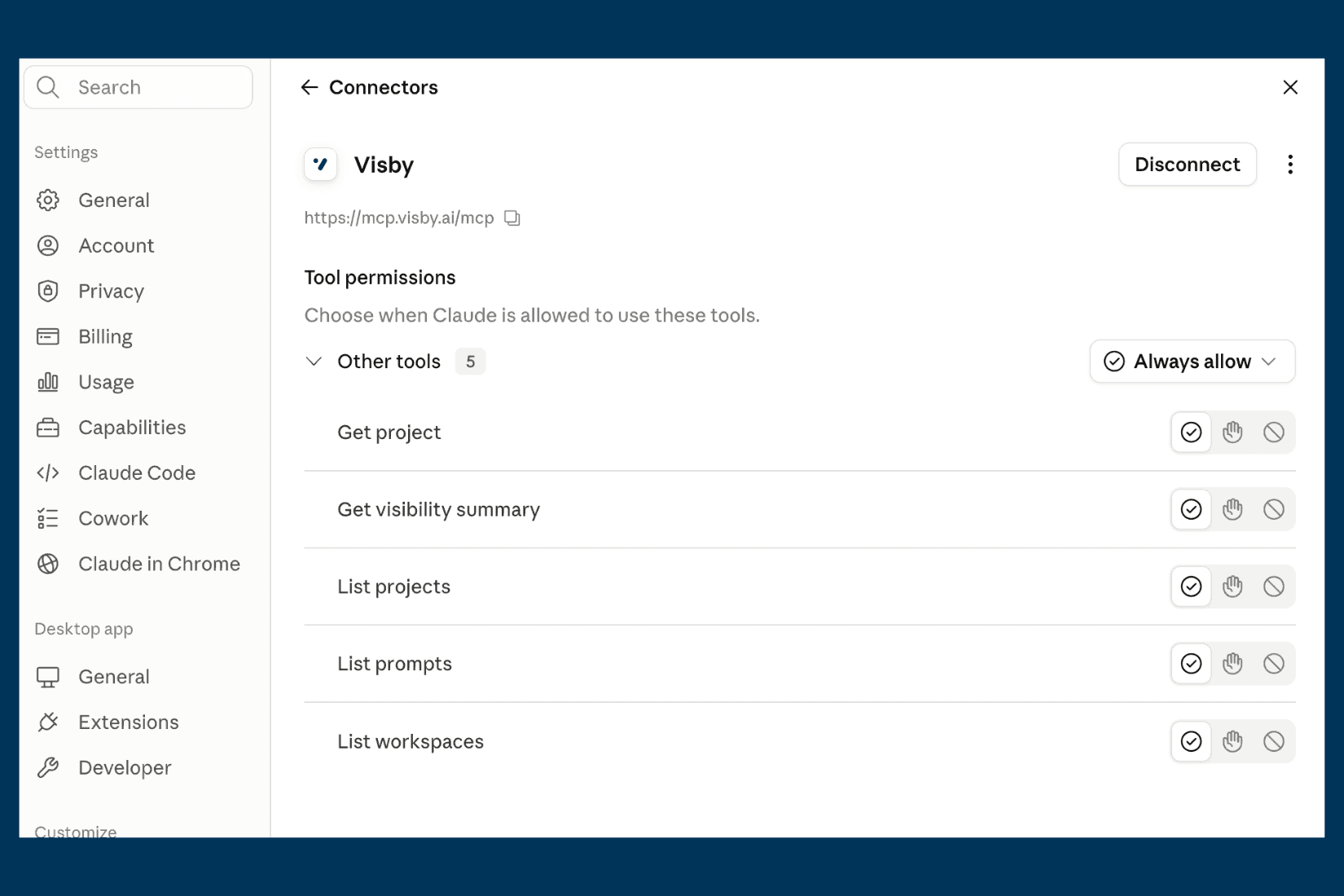
What You Can Do With Visby’s MCP
Check your AI visibility at a glance. Ask Claude for a visibility summary of a project, and it will pull your current AI visibility standing across ChatGPT, Claude, and Gemini.
Review your workspaces and projects. If you manage visibility tracking for multiple brands or clients, ask Claude to list your workspaces or projects to quickly find the one you need.
Dig into prompt performance. List the prompts tracked under a project to see which queries are triggering brand mentions and where there might be gaps.
Bring visibility data into your workflow. Because the data comes directly into Claude, you can ask follow-up questions, compare projects, or use the results as input for other tasks, like drafting a report or planning your next GEO task, without switching tools.
FAQ
What is MCP?
MCP (Model Context Protocol) is a standard that lets AI assistants like Claude connect to external tools and data sources, so they can pull in real information instead of relying on what they already know.
Do I need a Visby account to use the MCP connector?
Yes. You’ll need to be logged in to your Visby account during setup, since the connector links directly to your existing projects and data.
Can I use Visby’s MCP outside of Claude?
Yes. Visby’s MCP server works with any platform that supports MCP connections. This guide uses Claude as an example to show the setup process.
Is the connection secure?
Yes. The connection uses an authorization step where you approve access from your Visby account, and you can control exactly which tools Claude is allowed to use through the Tool permissions settings.
What if I want to disconnect Visby later?
You can disconnect at any time from the Connectors page in Claude by selecting Visby and clicking Disconnect.

